Everything below describes how Typlet 1.0 actually behaves. Start with the trigger rules and the permission notes for your operating system. AutoText →
Trigger rules
A trigger is 2–32 printable ASCII characters that begin with punctuation such as ; : or /, and it may not duplicate or be a prefix of another trigger. The replacement text can hold any Unicode, including Korean or Japanese, emoji, and line breaks. The saved label stands for standard physical keys, so ;hl is recognized while a supported IME is active even when those keys currently produce other characters. A non-ASCII trigger string is not converted into a portable trigger.
macOS permissions
AutoText needs Accessibility permission to observe physical keys and simulate the replacement. If it is missing, open System Settings from the in-app guide, enable Typlet, and retry. The Free popup may separately ask for Automation access to return focus to the previous app; AutoText itself does not need it. After an update, macOS may treat the app as a new entry: remove only the stale Typlet entry, add the installed app again, and restart it.
Windows limits
Typlet runs at normal integrity, so Windows does not let it insert text into an application running as administrator; the trigger is then passed through unchanged. Do not run Typlet as administrator — use a normal target or launch the target without elevation. If no keys are detected at all, restart Typlet and check the installed build. If keys are detected but nothing is inserted, test in Notepad, review the exclusion list, and check whether the target is elevated.
Trial, purchase, and restore
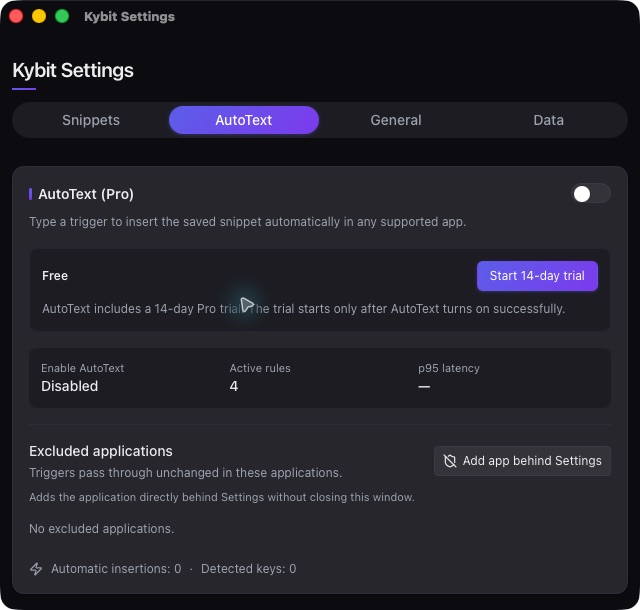
The 14-day trial begins only when AutoText is turned on successfully; installing, editing a trigger, or a failed permission does not start it. When it ends, only AutoText stops. Purchase opens a hosted checkout in your browser, and Typlet never sees card details. One license covers one person on up to three active devices in any macOS and Windows mix; a confirmed deactivation frees that seat. If the license service cannot be reached, the previous valid state stays in place and Free is never affected.
Sync, backup, and import
Sync uses a folder you pick inside an installed cloud client such as Google Drive, iCloud Drive, Dropbox, or OneDrive; Typlet has no account or server of its own. When the folder is unavailable, Typlet keeps working from its local copy and reconciles on return. Import accepts Typlet backups from schema 1.0 to 3.0 up to 16 MiB; import a backup from a newer Typlet only after updating. Trial and license records are local only and are never authoritative in a backup or sync folder.
Troubleshooting order
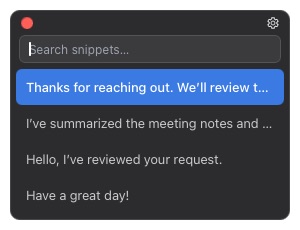
Confirm that the Free popup still searches and inserts. Confirm that AutoText is on and shows an active trigger count. Check that the current app is not excluded (Typlet's own windows always are). Retry in TextEdit on macOS or Notepad on Windows. Review Accessibility on macOS or elevation on Windows. Restart Typlet after sleep, a permission change, or an input-source update. Export a backup before changing the sync folder or reinstalling.
Diagnostics, refunds, and contact
When you write to support, include your operating system, the Typlet version, and what you expected versus what happened. Send counts and categories only — never snippet text, clipboard contents, a license key, or private paths unless support explicitly asks for the minimum needed. Direct purchases carry a 14-day refund window; write from the purchase email with the receipt or order number, and never send a full card number.